Well, in our daily life, there is always a need for a clean and professional-looking photo. It can be for product photography, profile, or document. For those purposes, we often need a white background in the images. A white background instantly makes your images look professional and focused.
But how to change the photo background to white? You know what the good news is? You will not always need a professional or expert to change the photo background. On top of that, you will not even need to learn complicated tools.
To help you out in this comprehensive guide, we will teach you step by step. So just read on.
Why Choose a White Background for Photos?
We have already given you a hint. First, let us check out the importance of a white background in photos in detail here.
1. Professional look
You know a white background makes your images appear high-quality and consistent. For this reason, many businesses and marketplaces prefer a white background. It gives the images a trustworthy and professional feel.
2. Focus on the subject
If you have so many colors or patterns in the background of an image, it can easily distract the viewers. But when you use a white background in your images, it removes these types of distractions. It also makes the subject of your image the central focus of the viewers.
3. Required for platforms
If you are in an online business, you must know that many ecommerce platform has strict image requirements. For instance amazon. It needs the product images to have a white background. Moreover linkedin requires the profile photos to look cleaner and whiter.
4. Easy to reuse and edit
When you use a white background in your images, it makes it easier to reuse them for other purposes. Like for marketing or social media. You can also place those images anywhere you need without thinking about flashy backgrounds.
5. Works for almost every photo type
You can use white backgrounds in almost every photo type. That is because white backgrounds are very versatile. They work well for many purposes. For instance,
- Product photography
- Portraits and headshots
- Fashion photos
- Food photography
- Documents and ID photos
Things To Prepare Before Changing Background
Now lets move ahead to changing the background to white in our images. Here, we need to do some preparations. Check it out below.
I) Use a high-quality image
First of all, you should use high-quality images. That is because low-resolution or blurry photos make background removal difficult. So, your image should have a high resolution of at least 1080p for online use.
II) Choose a simple original background
If possible, you should start with a plain or solid background. If you have complex backgrounds, it can make editing harder. That is especially around edges or hair.
III) Pick the right file format
Different editing tools work better with different formats. For instance, RAW files are best for professional editing in Photoshop or Lightroom. In other hand, high-quality JPEG or PNG works well for online tools or apps. You should avoid heavily compressed images that can lose detail.
IV) Consider the final use of your photo
When you know where the photo will appear, it will help you to prepare correctly. For instance, you will need high-resolution and pure white backgrounds for Online stores. Asfor Social media, a slightly off-white background may look more natural.
When to Use Transparent And Solid White Background In Photos?
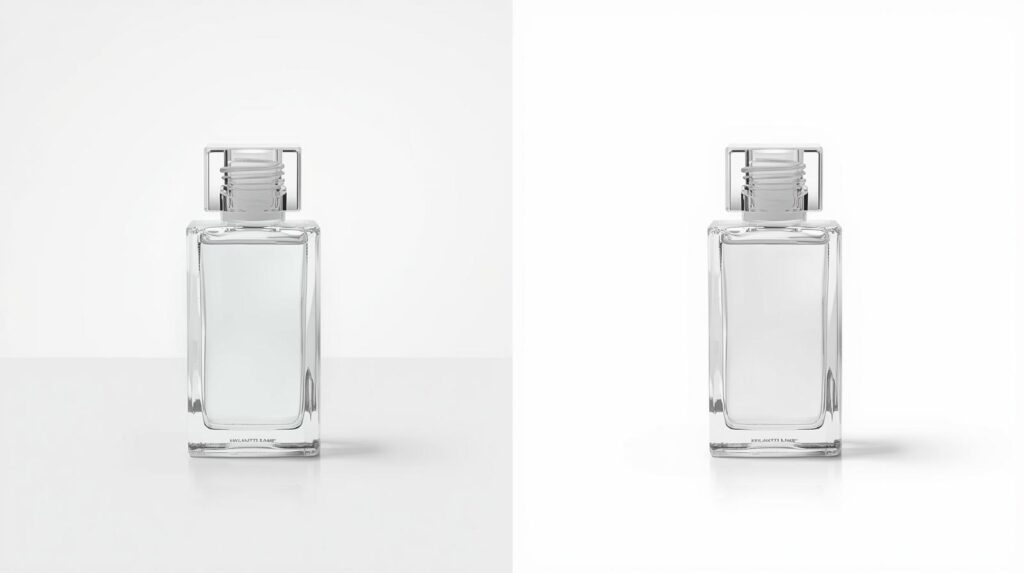
Well, depending on your need, you can choose to change the background to a transparent or a solid white background. Here is an overview for your assistance.
| Background Type | Transparency | Best Use | Advantages |
|---|---|---|---|
| Transparent | Yes | Design projects, overlays, presentations, and e-commerce graphics | You can replace it over any background |
| Solid White | No | Product images for marketplaces (Amazon, eBay), ID/passport photos, and social media | Clean and consistent look. It meets most platform requirements |
| Off-White or Slightly Light Background | No | Portraits, social media posts, and marketing visuals | Looks natural. It avoids a washed-out subject. |
Photoshop Tools For Background Removal
When it comes to photo editing, Photoshop is the first choice for editors. So, before moving to change the background to white in the images, let us get familiar with the Photoshop tools for background removal.
| Tool | Why It’s Useful |
|---|---|
| Select Subject and Remove Background | It is an AI-powered tool. It automatically detects the main subject and is perfect for most portraits and products |
| Layer Mask | It is a non-destructive editing tool. It lets you hide or reveal parts of an image for precise edge control |
| Quick Selection Tool | The tools let you paint over areas to select them. It is ideal for well-lit objects with clear edges. |
| Magic Wand Tool | It selects areas of similar color. So, you can use it for uniform backgrounds |
| Pen Tool | Manual tracing for complex shapes or logos. The tool gives the highest precision |
| Background Eraser Tool | The tool removes pixels based on color sampling. It is useful for textured backgrounds |
| Color Range & Channels | It selects areas based on color or contrast. The tool is helpful when edges are difficult to define. |
How To Change The Photo Background To White In Photoshop?
You can change a photo background to white to make your images look clean and professional in Photoshop. Cherry on the cake is that it is not very hard to crack. By following simple steps, you can easily change the image background to white. Check it out below.
Step 1: Open your photo
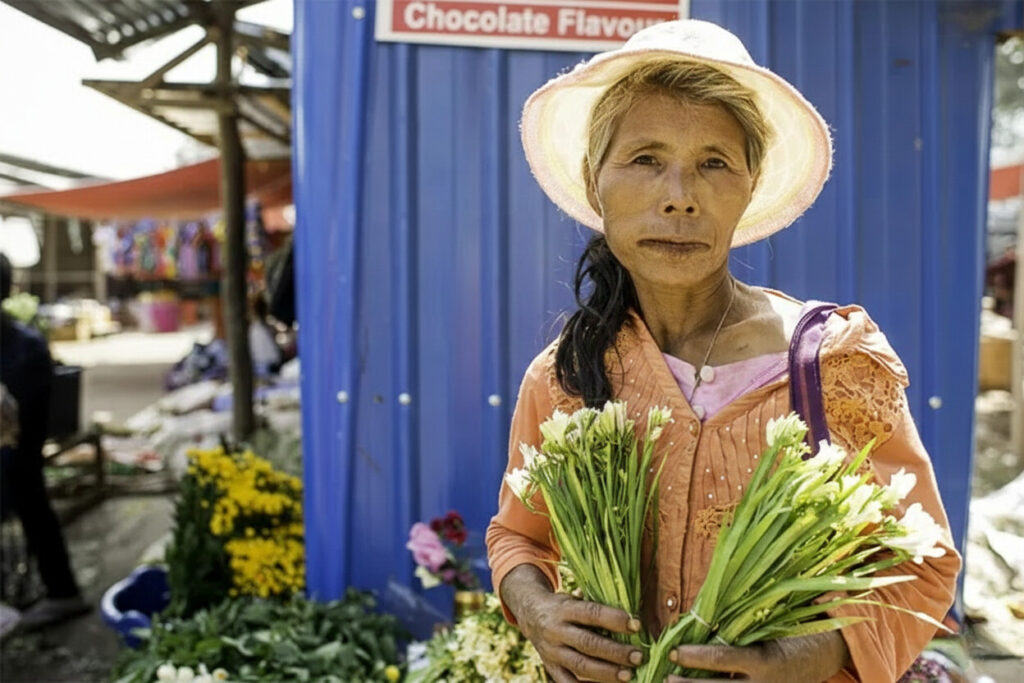
First, open your image in Photoshop whose background you want to change. You should always use the highest resolution available. That is because low-resolution images can make edge selection tricky and result in blurry outlines.
Step 2: Use Select and Mask
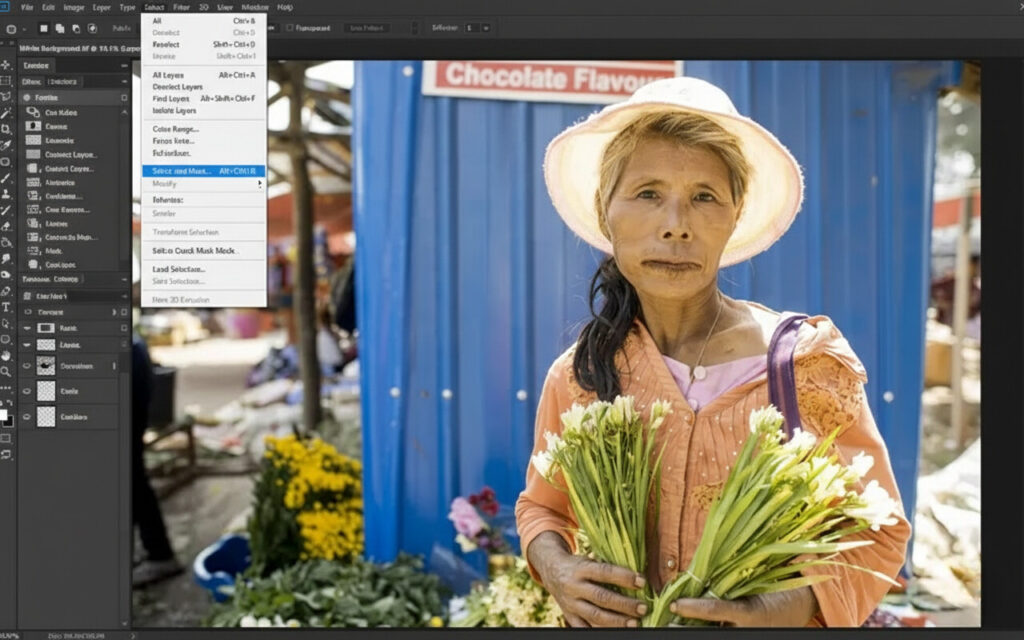
Now, go to Select and choose Select and Mask from the top menu. Next, choose a View Mode. For instance, Overlay. This mode shows the selection clearly, letting you see exactly which areas are selected.
Step 3: Select the subject
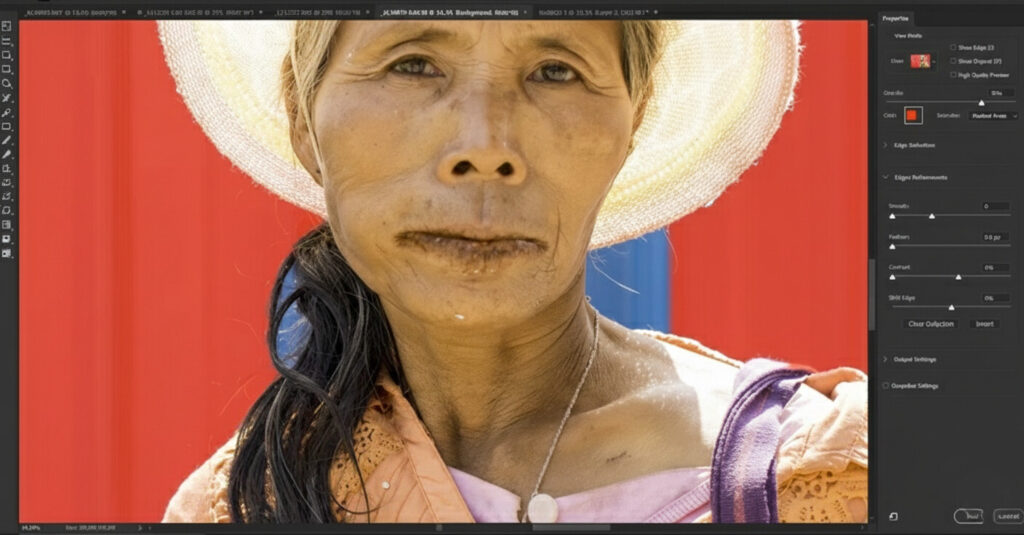
Next, choose the Quick Selection Tool from the toolbar. Brush inside your subject slowly. You may select large areas instantly. But you will need to pay extra attention to small details like hair or accessories.
Step 4: Refine the edges
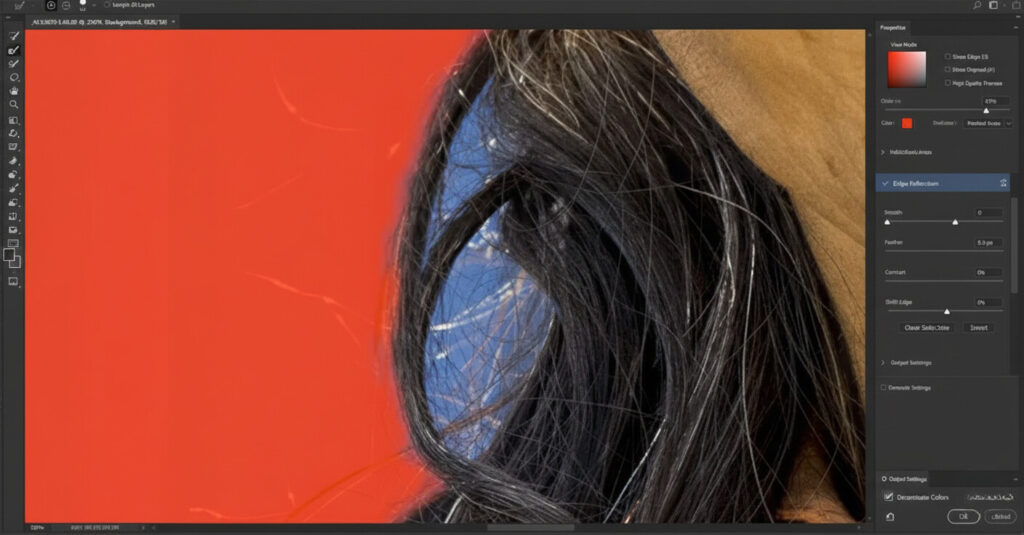
Now you have to use the Refine Edge Brush to clean fuzzy or complex edges. Zoom in to work closely on hair or soft details. You should adjust the brush size for precise control. Ensure to take your time, don’t be hurry.
Step 5: Output as a layer mask
After your selection looks good, go to the Output To menu. Then choose New Layer with Layer Mask and click OK. It will separate your subject from the background, creating a mask. It preserves your original image underneath.
Step 6: Add a white background
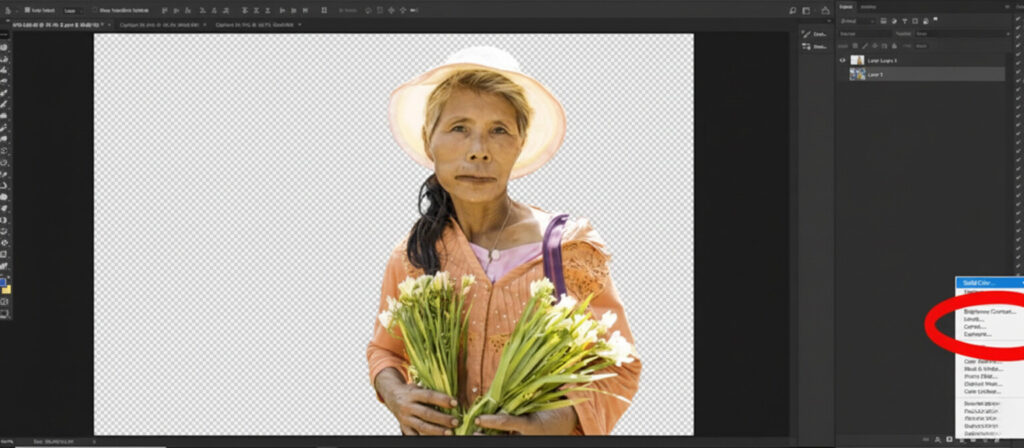
As for the next step, click on the original background layer. From the bottom of the Layers Panel, select Create New Fill or Adjustment Layer >> Solid Color. Now choose pure white and click OK. You should place this white layer below the subject layer. You will see your subject sitting neatly on a white background.
Step 7: Perfect the edges
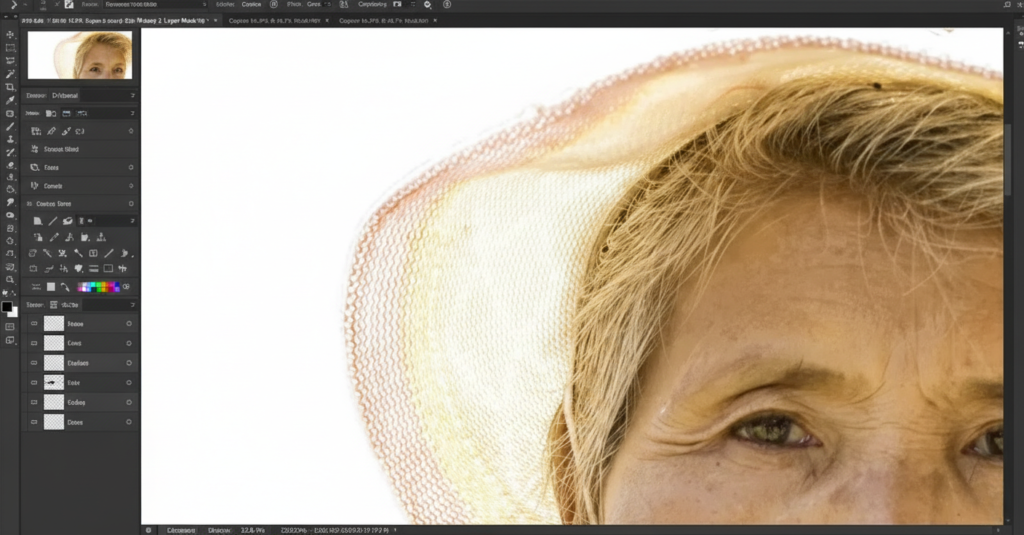
Sometimes, edges may look rough even after masking. In those cases, go to Layer >> Matting >> Defringe. If needed, you can also try Remove White Matte. For final adjustments, zoom in and paint on the mask with a soft black brush at 50% opacity. It will remove the stray background gently.
Step 8: Crop or resize
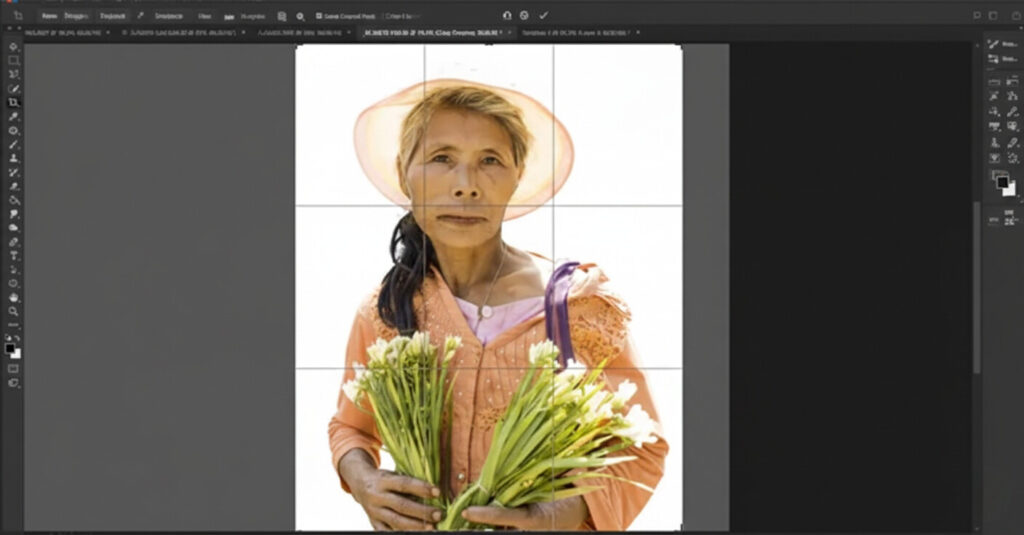
We are almost done. Finally, you have to crop unnecessary white space to focus on your subject. If you need extra space for text or design, go to Image >> Canvas Size. It will expand the canvas.
That is it! Pretty easy, right? You just need to save your edited image in the required image formats.
When to use which background formats?
| Format | Transparency | Best Use | Pros |
|---|---|---|---|
| PNG | Yes | When you need reusable images or overlays | It keeps clean edges and a transparent background |
| JPG | No | Marketplace and social use with a white background | Small file size and widely accepted |
| TIFF | Yes | Professional print or design workflow | Lossless quality |
| WEBP | Yes | Web and SEO optimized | Small size with transparency |
Adjustments for Different Photo Types in Photoshop
The steps we have described above are the main steps and will remain the same for all images. However, different types of photography will need small but important adjustments. Here they are.
I) Product photography
In product photography, you should keep edges sharp and clean to avoid jagged outlines when you remove backgrounds. Moreover, you should add a soft drop shadow to prevent the product from looking like it’s floating.
II) Fashion photography
If your images are of fashion photography, you should use the Refine Edge Brush for hair, fabric folds, and accessories. Be careful to preserve natural shadows under clothing for depth. You can slightly adjust the Smooth and Feather settings to blend natural textures.
III) Portrait photography
In portrait photography, you have to pay attention to hair and facial edges. For this, you can use the Refine Edge tool. You will also need to maintain the natural skin tone while editing in Photoshop. In this regard, you can also use a slightly off-white background (#f8f8f8) to prevent washed-out skin.
IV) Food photography
You should focus to preserve natural shadows under food items to maintain depth. Keep highlights balanced so the food texture looks realistic. You can use a soft brush on layer masks for edge removal around toppings or crumbs.
How to Make a Photo Background White in Lightroom?
You can also use Lightroom to change the image background to white. It is also very simple in Lightroom, and it makes your images look professional. So, if you are using this tool, you can follow the steps.
Step 1: Import your photo
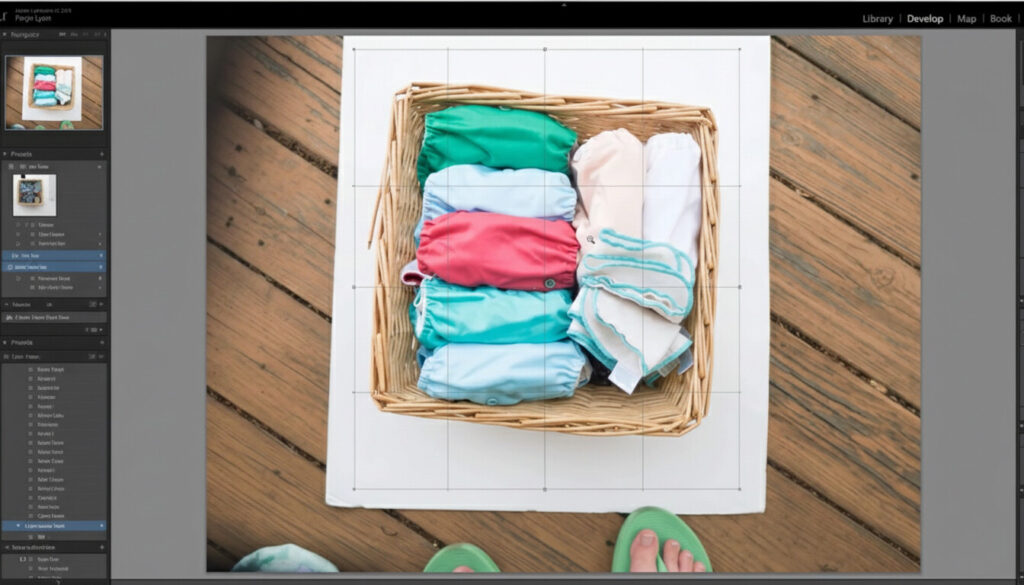
First, open Lightroom on your computer or smart device. Then go to the Library tab and click Import to upload the photo you want to edit.
Step 2: Switch to Develop mode
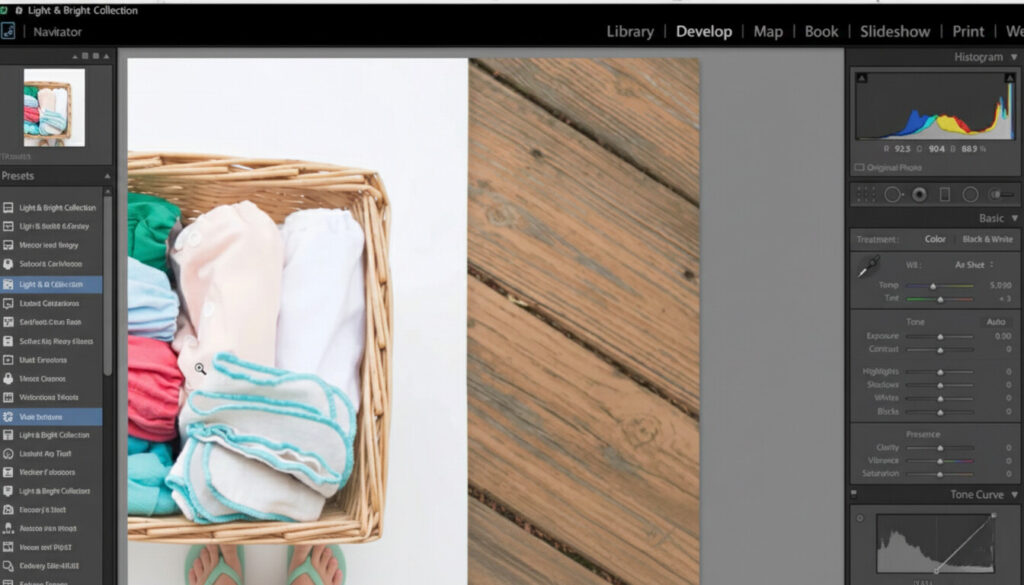
After that, you have to move to the Develop tab to start editing. In this tab, you can adjust exposure, contrast, and other settings for your image.
Step 3: Adjust exposure
Now, locate the Exposure slider. Move it to the right to brighten the background. Now you have to adjust the Contrast slider carefully so your subject remains visible and natural.
Step 4: Select the Adjustment Brush
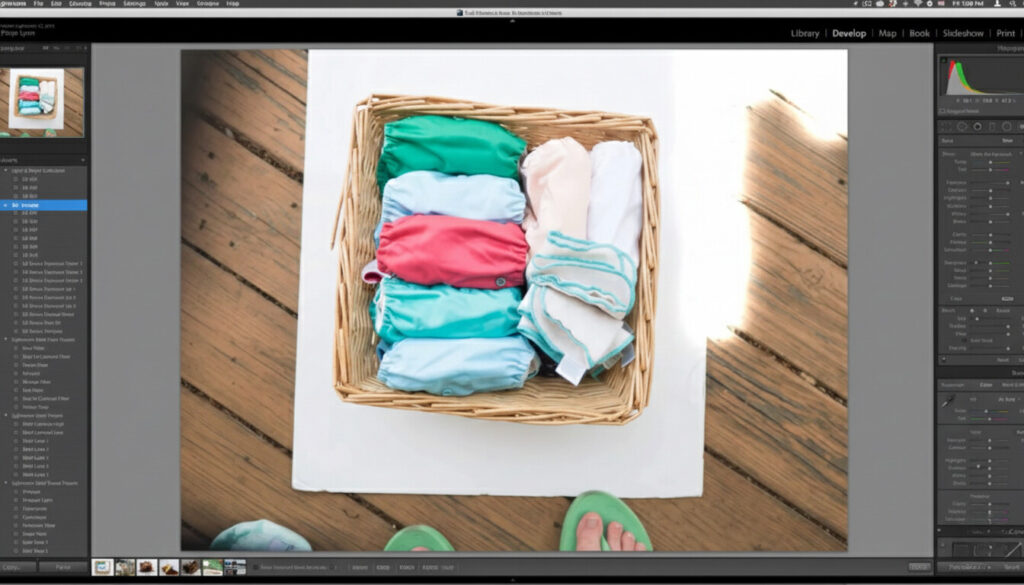
Next, choose the Adjustment Brush from the toolbar. You have to set a higher exposure level on the brush. That is because it will help you to paint the background white without touching the main subject of your image.
Step 5: Choose Fine-Tune brush settings
Now you have to adjust the Feather and Flow settings to ensure smooth edges. Here, you have to reduce the brush size to reach small details and carefully trace around the subject for a clean separation.
Step 6: Enhance highlights and whites
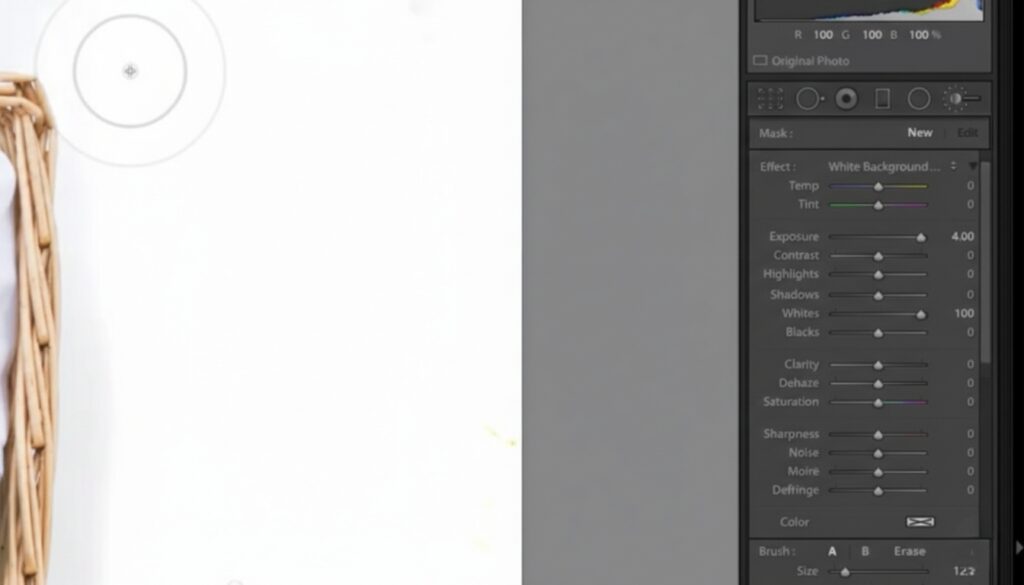
Use the Highlights and Whites sliders to brighten the background further. Be careful not to overexpose your subject. Otherwise, it may lose detail.
Step 7: Check for consistency
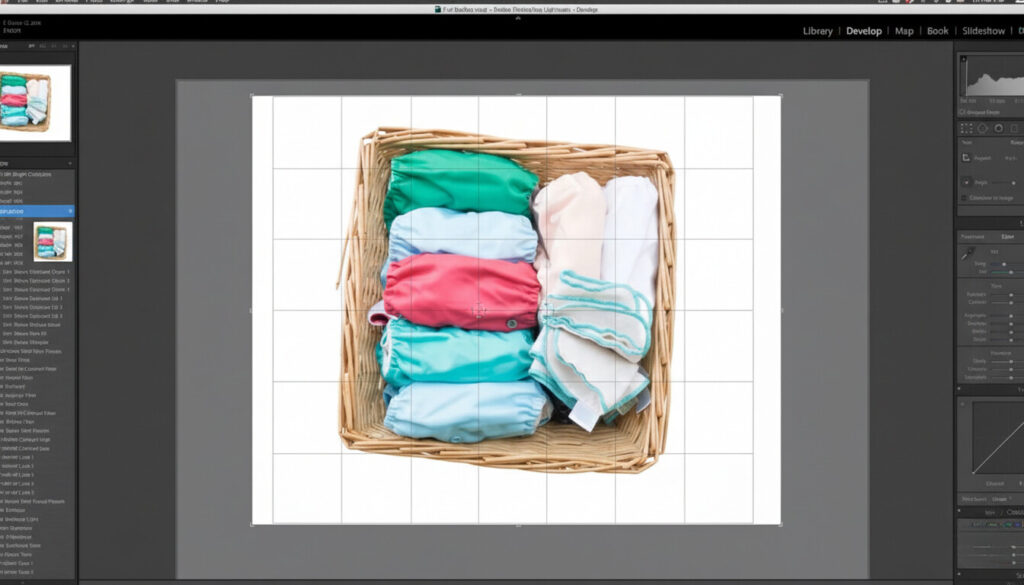
We are almost done. Now you have to ensure all background areas appear evenly white. If some spots are darker, go back with the brush or adjust exposure slightly until the background looks even.
Step 8: Export your image
That is it. After you are satisfied with the background of the image, save or export your edited photo. You can now use this image for websites, social media, or print.
Lightroom vs Photoshop for Changing Photo Background to White
Well, if you are wondering or not so sure which tool you should use to choose to change the background to white in your image, this section will help you out. Check out the difference between Photoshop and Lightroom to choose the best one for your image needs.
| Feature | Lightroom | Photoshop |
|---|---|---|
| Background Removal | High. You can have precise edge control using Layer Masks and selection tools | It can completely remove or replace the background |
| Best For | Photos with simple and uniform backgrounds | Any photo, including complex subjects like hair, fabric, or products |
| Precision | More advanced. It requires understanding layers, masks, and selection tools | Medium: It works best for simple edges |
| Ease of Use | Beginner-friendly sliders and brushes | Slower. It is best for one image at a time or careful edits |
| Speed | Fast and great for batch edits | SlowerIt is best for one image at a time or careful edits |
| Output Quality | Good for online use | Professional quality for web, print, or e-commerce |
| Recommended Users | Hobbyists, casual photographers, and bloggers | Professionals, e-commerce sellers, and advanced photo editors |
How to Change the Photo Background to White On iPhone/Android?
Mobile phones make it surprisingly easy to change photo backgrounds. But keep in mind that it can’t match the precision that Photoshop offers. However, let us learn it below.
Step 1: Open your image in your chosen app.
Step 2: Now, use the background removal tool of the app. Most apps automatically detect the subject. For tricky areas, you can use the manual brush to refine edges.
Step 3: After removing the original background, add a solid white background layer. Resize or move your subject if needed.
Step 4: Now you have to refine edges and shadows in the image. You should check edges for rough lines and smooth them using an eraser or a feather tool. You can also add a subtle shadow under the subject if the app allows.
Step 5: It is done. Now, just save your photo in high resolution. You can use PNG if you need a transparent background later, or JPEG for direct social media posting.
Popular Apps for Background Removal
There are different apps that you can use for background removal in your image on your iPhone or Android. Here we have made a quick overview of the best ones to help you out. You can get the idea from below and choose the best one according to your needs.
| App | Platform | Key Feature | Free/Paid | Best For |
|---|---|---|---|---|
| Free, but it is limited. Paid for high-res | iOS and Android | Automatic background removal in one tap | Free, but it is limitedPaid for high-res | Quick edits and simple backgrounds |
| Canva | iOS and Android | AI background remover + design templates | Free -basic, Pro for remover | Bloggers, social media posts, and product images |
| Snapseed | iOS and Android | Manual brush and selective adjustments | Free | Users who want more control over edges |
| Adobe Express | iOS and Android | AI-powered removal + white background option | Free Paid for full features | Quick edits and marketing visuals |
| Pixlr | iOS and Android | Background eraser and editing tools | Free (ads)Paid removes ads and adds features | Product photos and simple edits on mobile |
Best Online Photo Editor Tools
Check out the best online photo editing tools below.
| Tool | Platform | Key Feature | Free/Paid | Best For |
|---|---|---|---|---|
| Pixlr E | Browser (Web) | Background removal, layer support, and advanced editing | FreePaid removes ads | Product photos and detailed edits online |
| Photopea | Browser (Web) | Photoshop-like interface, masks, and layers | Free and Paid for premium | Users familiar with Photoshop and complex images |
| Fotor | Browser (Web) | AI background remover and one-click edits | Free and Paid for Pro features | Quick edits and social media images |
| Canva Online | Browser (Web) | Background remover + design templates | Free and Pro for remover | Bloggers, marketing visuals, and simple edits |
| Remove.bg Online | Browser (Web) | Automatic background removal in one click | Free and Paid for high-res | Quick and simple background removal for beginners |
How To Change Photo Background To White Using An Online Photo Editor?
Online photo editors are perfect if you don’t want to install software. They work directly in your browser, making them quick and convenient. Here is how you can use it to change the background to white.
Step 1: First, go to your chosen editor’s website. Click Open Image and upload your photo.
Step 2: Next, select the Background Removal Tool. Look for a Background Eraser or Magic Cut tool in the editor. You will see that most editors have automatic detection. However, you can refine it manually.
Step 3: If the tool removes the background, you’ll see it turn transparent. Add a new layer behind your subject and fill it with white. If your editor only brightens, increase Exposure/Whites until the background looks clean white.
Step 4: Zoom in on areas like hair, fabric, or fine details. Then use a small brush to clean leftover background pixels.
Step 5: If your subject looks like it’s floating, add a soft shadow beneath it. You have to adjust the brightness or Contrast of your subject to blend naturally with the white background.
Step 6: At last, save your photo in high resolution.
Common Mistakes To Avoid While Changing the Photo Background To White
No matter which tool you use, some common mistakes can make your final image look unnatural or unprofessional. You will need to avoid these mistakes to create clean and realistic white backgrounds every time.
I) Starting with low‑quality images
A blurry or low‑resolution photo can make it harder to remove the background. That is why you should always use high‑resolution and sharp images for the best results.
II) Ignoring fine details
In some cases, editors ignore small details like hair, fabric edges, or thin objects. If you don’t zoom in and refine these areas, the photo will look cut‑out and fake. That is why always be careful with the fine details in the image for background removal.
III) Choosing the wrong tool
You should always keep in mind that you can’t use all editing tools for every image. For instance, if you use basic automatic tools for a complex background, you may face more difficulty. That is why always choose the editing tools according to your image needs.
IV) Failing to refine edges properly
When you are removing background from an image, you are not just cutting out the background. It is just the first step. You should also take care of the hard edges or over‑feathered edges. That is why you should use tools like Refine Edge and Layer Mask properly.
V) Over‑editing or overdoing adjustments
You know it is seen, it is very easy to push settings too far, especially in tools like Lightroom or mobile apps. Here, excessive whitening, contrast, or exposure can make the subject look washed out or artificial. That is why you should keep adjustments balanced and natural.
How Clipping Path CA Can Help You With Changing The Background To White?
Clipping Path CA is a professional photo editing and image retouching service that specializes in precise background removal and replacement. Their team uses hand‑drawn clipping paths and advanced Photoshop techniques to isolate subjects. They help to create clean white backgrounds for product, portrait, and commercial images. With fast turnaround and bulk processing capabilities, Clipping Path CA saves time and ensures high‑quality white backgrounds. They also offer free trials. So, you can use their free trial option before committing.
Frequently Asked Questions
Do you have any more questions about changing the photo background to white? In this section, let us try to answer some of your common queries through the questions that people mostly ask.
I) Is removing a background difficult?
Well, honestly speaking, that depends. Whether you will face difficulty or can easily change the photo background depends on your image complexity. However, different tools like Photoshop, Lightroom, mobile apps, or online editors make the background removal process easier. However, complex edges may require careful manual adjustments for a clean result.
II) How do I change the background color in a photo?
First, open your photo in an editor like Photoshop, Lightroom, or Canva. Next, you have to select or mask the subject. Then you have to remove the current background and replace it with your desired color. At last, refine edges for a natural look.
III) What is the best background remover?
Actually, there is no single best background remover that we can mention. That totally depends on your need. However, if you need simplicity and precision, you can choose Photoshop. You can also use Remove.bg or Canva for quick automatic removal.
IV) How do I remove the background from people in an image?
You can use the selection tools of Photoshop or mobile/online AI tools. If you need, you can also choose the professional service for the precise result.
V) How much does background removal cost?
Actually, it totally depends on the service provider or the tools you are using. For instance, you can have simple edits with the free online editors or apps. However, as for professional services for background removal, they often cost $0.39–$2 for high-quality results. It depends on complexity and volume.
Final Words
Well, as you see, changing a photo background to white is not a very hard task. A white background in the images can dramatically improve your images. It does not matter at all whether the image is for products, portraits, or social media.
You can use different tools to change the photo background to white. However, if you need professional services, you can choose experts like Clipping Path CA ensure precise results for complex images. At last, take your time, and precisely follow the steps to change the image background to a white background. After all, it is all about enhancing your photos and make it stand out.