Well, that is a normal thing; photos do not look perfect when you first take them, right? It always feels like something is off. This is the place where touching up photographs truly helps you to make your clicked photos stunning.
But how to touch up photographs like a professional? What tools and techniques should you use? That remains a confusion! That is why, to help you out, we have brought about a comprehensive guide in this regard. You just need to read on.
What Is Photograph Retouching?
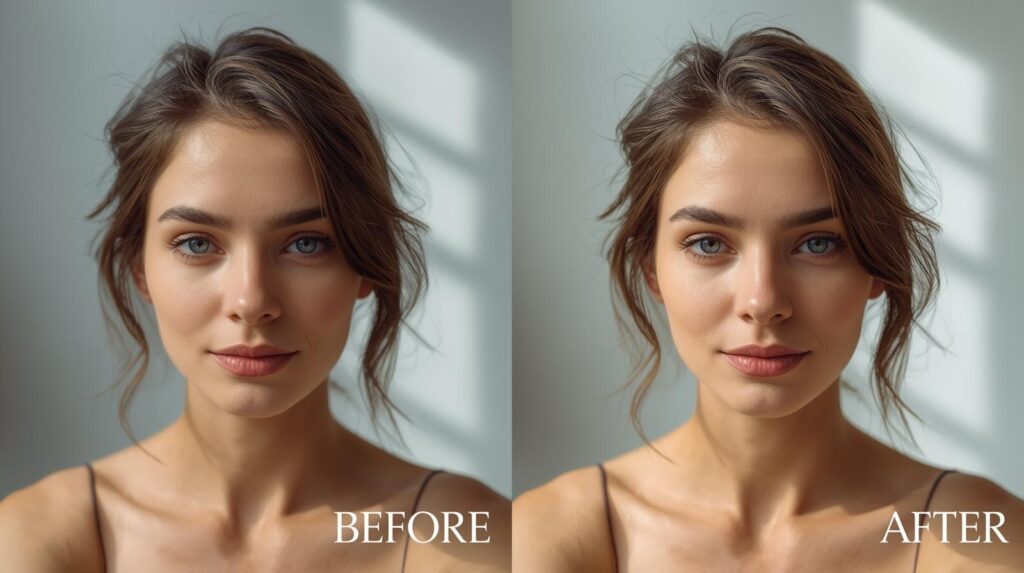
If we put it simply, touching up photographs means you want to enhance the photos by fixing small problems. Here, you do not change the main subject or make major changes. You just want to make the image look clean, clear, and amazing.
In photo retouching, we generally focus on details. Here, we aim to remove unwanted marks, dust, scratches, and spots. It also improves light, color, and sharpness. Ultimately, our goal in photograph touch-up is to make the photo look natural and beautiful.
Why Is Photograph Retouching Important?
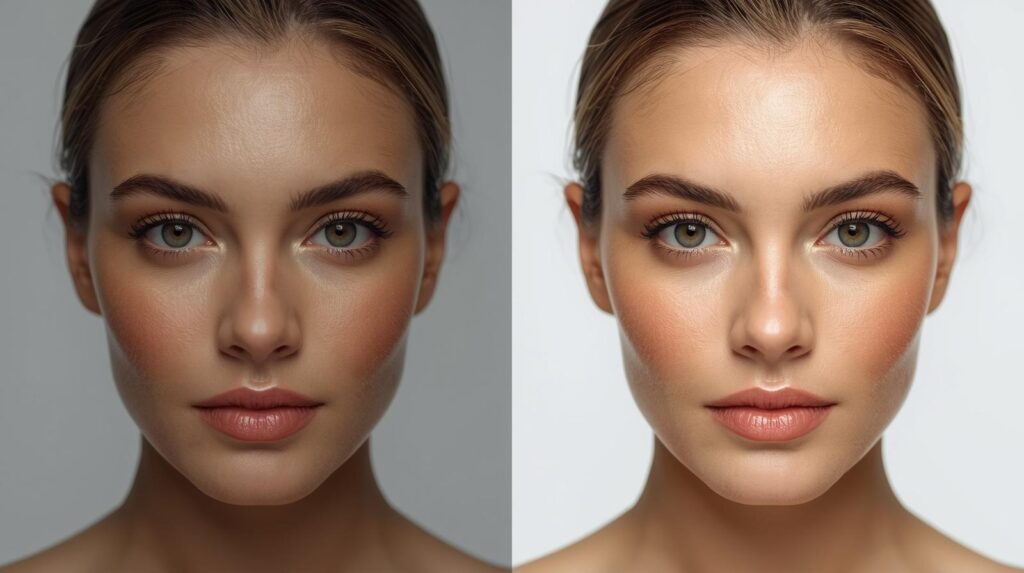
As we already mentioned, photograph touching up is meant to fix small problems in the photos. It makes images clearer and more professional. There are also many more benefits to it. Let us check it out below.
I) Improve image quality and clarity
First off, you can fix issues in the images through touch-up. Those issues can be like poor lighting, dull colors, or small marks. Moreover, you can sharpen details and balance tones. Ultimately, your photographs look high-quality and clear.
II) Build professionalism and trust
Second, if you are doing photography, you can build trust and professionalism by touching up. You can show the quality of your work and attention to detail. It is generally seen that touch-up photos look more trustworthy. It can increase sales and engagement.
III) Ensure consistency in photos
You can also ensure consistency in photos through touch-up. You know, when all photos in a series have consistent color, lighting, and style, they feel professional. The important thing is that this consistency is essential for portfolios and social media accounts.
What Is The Difference Between Photo Retouching And Editing?
Well, we have seen that many people think that photo touch and photo editing are the same thing. But that is not actually true. Let us check the difference between them below.
| Feature | Photo Editing | Photo Touchup |
|---|---|---|
| Purpose | General photo improvement | Fine-detail enhancement |
| Tools Used | Basic apps, filters, and exposure tools | Photoshop, Lightroom, and advanced retouching software |
| Scope | Overall image | Specific elements |
| Skill Level | Beginner to intermediate | Intermediate to expert |
| Result | Quick improvements and general polish | Professional-quality and realistic finish |
Techniques For Touching Up Photographs
As in touching up, we need to make detailed adjustments, so we generally use different techniques. These techniques help to improve your images. Professional photographers and editors use these techniques to refine photos with skill. Check it out below.
1. Exposure and contrast adjustment
It means how bright or dark your photo appears. Proper exposure makes sure important parts of the image are visible. It should not be too bright or too dark. On the other hand, contrast helps the photo look more vivid by increasing the difference between light and dark areas.
2. Color correction and enhancement
As the name suggests, color correction fixes color problems. It makes colors appear closer to what you saw in real life. Here, you want to make it stronger without overdoing it.
3. Detail sharpening
It is also a very important technique. Using this technique, you sharpen the important parts of a photo to make it clear. It focuses on edges, textures, and fine features. However, you need to use this technique carefully. That is because, if you use it too much, it can make your photograph look artificial.
4. Skin retouching
As for skin retouching, it focuses on smoothing skin tones and removing small flaws. These techniques make skin look clean but still show the natural textures. Here, you can use methods like frequency separation. It lets you edit color and texture separately so the skin stays realistic.
5. Background Cleanup
Here, you remove distractions like unwanted objects, clutter, or spots from the backgrounds. Generally, we use tools like Content‑Aware Fill and Clone Stamp in Photoshop to help fill in or replace areas.
What Are The Touchup Tools In Photoshop?
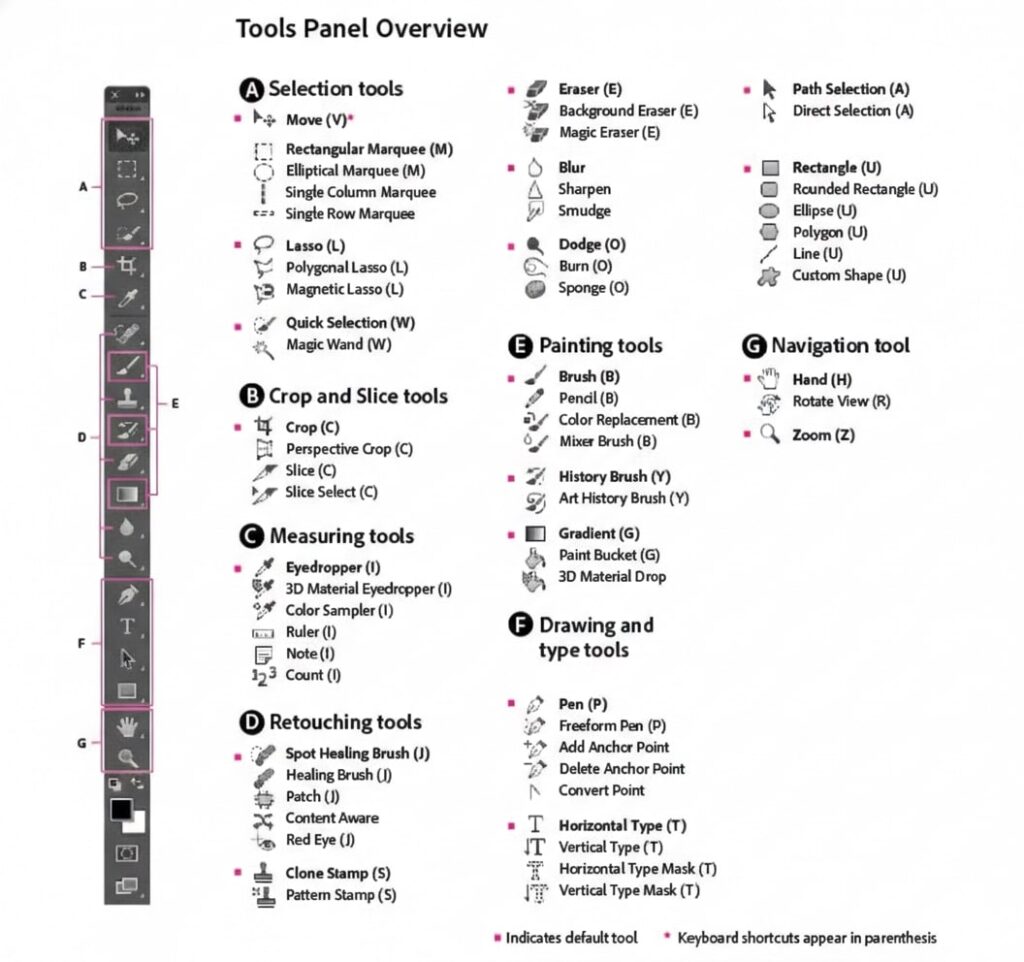
When we think about photograph touchup, we first think about Adobe Photoshop, right? It also offers a variety of tools to help you remove imperfections and adjust details. So, first, let’s check out below what touch-up tools Photoshop has. It will help you very much in the touch-up process.
| Tool | Purpose | Best Use |
|---|---|---|
| Spot Healing Brush | It removes small blemishes and spots | Quick fixes on skin, dust, or minor imperfections |
| Healing Brush | It repairs imperfections in a sampled area | Detailed touch-ups for texture and lighting consistency |
| Patch Tool | It replaces larger areas with clean sections | Wrinkles, scratches, or unwanted objects |
| Clone Stamp | It copies pixels from one area to another | Precise background or texture fixes |
| Content-Aware Move | It moves objects and fills gaps intelligently | Adjust composition or reposition subjects |
| Red Eye Tool | It removes red-eye caused by flash | Portraits taken with flash |
| Dodge Tool | It lights up specific areas | Highlight features and brighten shadows |
| Burn Tool | It darkens specific areas | Add depth and definition to features |
| Blur Tool | It softens edges and textures | Reduce distractions and smooth surfaces |
| Sharpen Tool | It increases clarity and edge contrast | Make details pop in portraits or product shots |
| Sponge Tool | It adjusts color saturation | Intensify or soften colors in selected areas |
| Eraser Tools | It removes pixels or background areas | Clean unwanted elements or separate subjects |
How To Touch Up Photos In Photoshop?
Here comes our crucial part of the discussion, how to touch up photos in Photoshop. Honestly speaking, retouching photos in Photoshop can seem complex. But it is actually not. You just need to follow the right steps, and you can ensure the best results.
The following is the step-by-step guide in this regard.
Step 1: Take a clean workspace
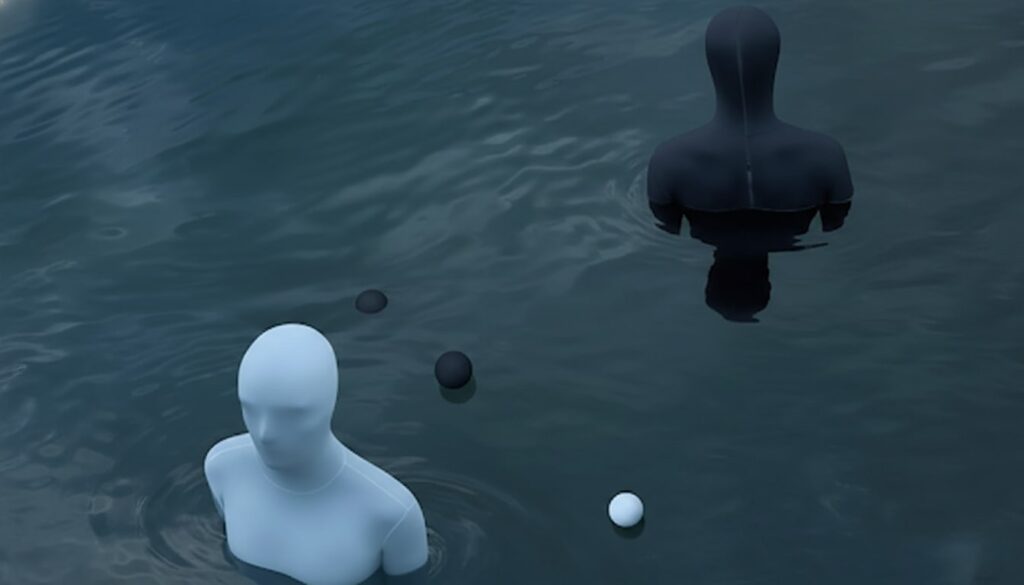
- First, open your photo in Photoshop.
- Go to File, then Open.
- Now select your image.
Step 2: Remove small imperfections
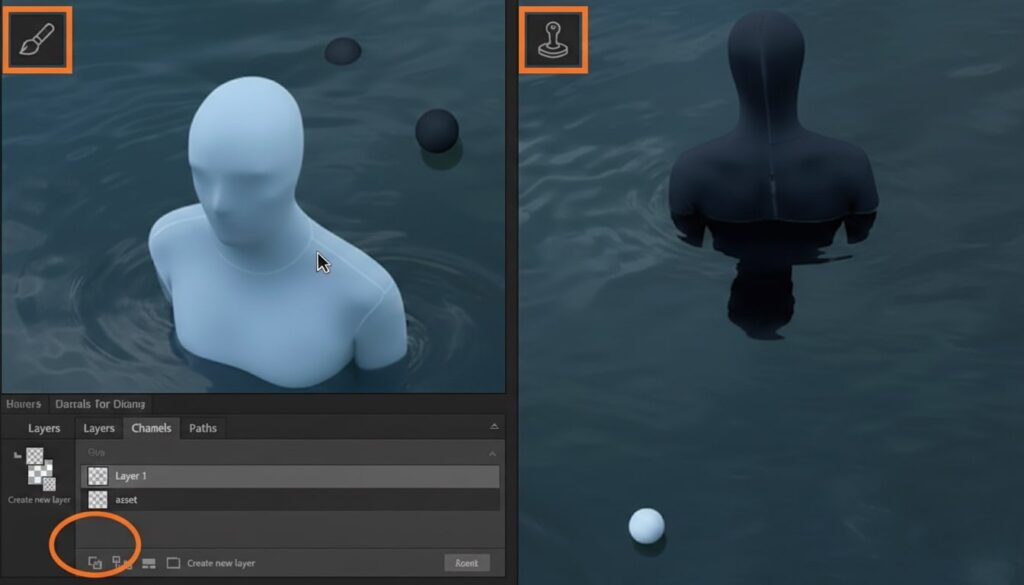
Now we will remove imperfections from the image. Here, you can use tools like the Spot Healing Brush. It will help you to remove tiny spots automatically. Using the Healing Brush, you can repair areas, and the Patch tool for larger problem areas.
Step 3: Fix major distractions
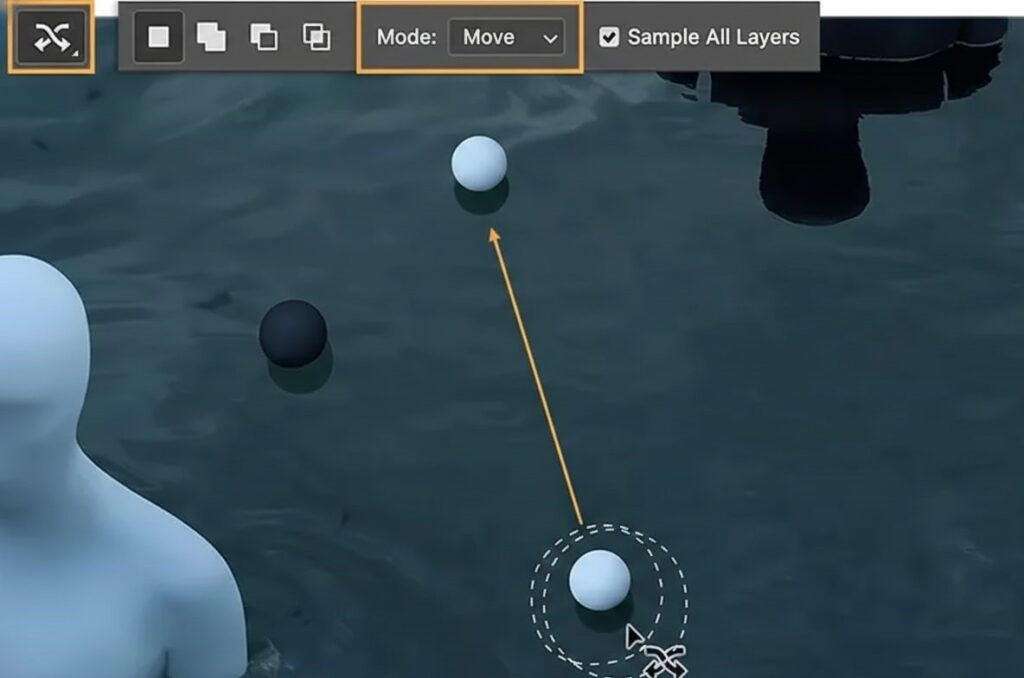
If there are objects or elements you want moved, you can use the Content‑Aware Move tool. Here, first you need to select the part you want to reposition using the tool. Then drag it to the new area. That is it! Now Photoshop fills the empty area.
Step 4: Adjust exposure and light
Now we have to fix brightness, contrast, and tone adjustments if these have issues. In this case, you can use Adjustment Layers like Brightness/Contrast, Levels, or Curves. These tools let you enhance shadows and improve overall lighting.
Step 5: Color correction
Color correction is very important when you are touching up your photos. If your photographs have unwanted color casts or uneven tones, you should use tools like Hue/Saturation or Color Balance. They will help you to correct skin tonality and product colors. Ultimately, you can enhance the overall mood of the image.
Step 6: Smooth skin and textures
In case you are touching up portraits, you will need to touch up the skin. Here, generally, we aim to make the skin softer without losing its natural details. In such cases, techniques like Frequency Separation help out. It separates skin texture from color. After that, you can fix blemishes, keeping the texture intact.
Step 7: Final sharpening and polishing
Well, if you want to emphasize some areas in your photographs, don’t forget to sharpen them after all adjustments. It can be eyes, lips, or details in clothing. However, the important thing is that you should avoid sharpening your skin too much. If not, the skin will look grainy.
Step 8: Save the final file
We are done! After you are satisfied with the touch-up results, move ahead to save it. Follow the options below to save your file.
- Use File >> Export >> Save for Web for online use
- Use File >> Save As for print
How To Touch Up Old Photos?
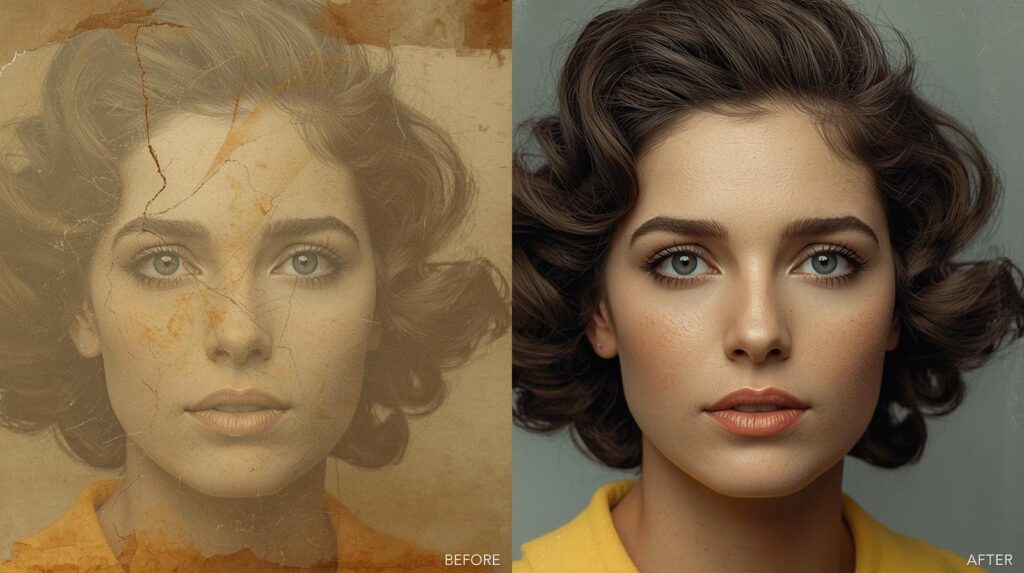
Old photographs often have issues like fading, discoloration, scratches, or tears. You can also restore these images with a photograph touch-up. Professional photographers generally follow the steps below.
Step 1: First, you have to scan or digitize the photo. For this, you use a high-resolution scanner. Then save in TIFF or PNG.
Step 2: Next, use the Spot Healing Brush, Healing Brush, or Clone Stamp Tool to clean up dust and scratches. Carefully paint over imperfections, but ensure to preserve surrounding details.
Step 3: If the photo has torn edges or missing areas, use the Patch Tool or Clone Stamp Tool to reconstruct it. You have to match the texture and tone with nearby areas for natural blending.
Step 4: Next, adjust color using Levels, Curves, or Hue/Saturation Adjustment Layers. You can also enhance brightness and contrast to make details more visible. However, you have to adjust colors carefully as we have to maintain the original tone of the photo.
Step 5: Well, old photos can appear blurry or soft. That is why you can apply subtle sharpening to bring out details.
Step 6: After touching up, you should have at least two copies.
- One master copy with layers for future edits
- One flattened version for printing or sharing online.
How To Touch Up A Face In Photographs?
If you just specifically need to touch up your face in your photograph, follow the steps below.
- Open your photo in Photoshop
- Zoom in to focus on the face for precise edits
- Use the Spot Healing Brush for pimples, small scars, or dust on the face
- For larger areas, you can use the Healing Brush or Patch Tool, as it works better
- Ensure to preserve natural skin texture and avoid over-smoothing
- Use the Frequency Separation technique to smooth skin texture. You should use low frequency to edit colors and tones. In contrast, use high frequency to keep skin details and texture
- Brighten whites of the eyes slightly using the Dodge Tool
- Sharpen irises for more definition using the Sharpen Tool
- Tidy stray eyebrow hairs with the Clone Stamp Tool or Healing Brush
- Use the Dodge Tool to lighten teeth carefully
- Slightly enhance lip color with the Sponge Tool
- Remove stray hairs using Clone Stamp or Healing Brush
- Adjust highlights or shadows on hair with the Dodge and Burn Tools
- Check the overall color balance of skin tones
- Apply slight sharpening on eyes, lips, and hair for definition
- Zoom out to ensure edits look natural at normal viewing distance
How To Touch Up Hair In Photographs?
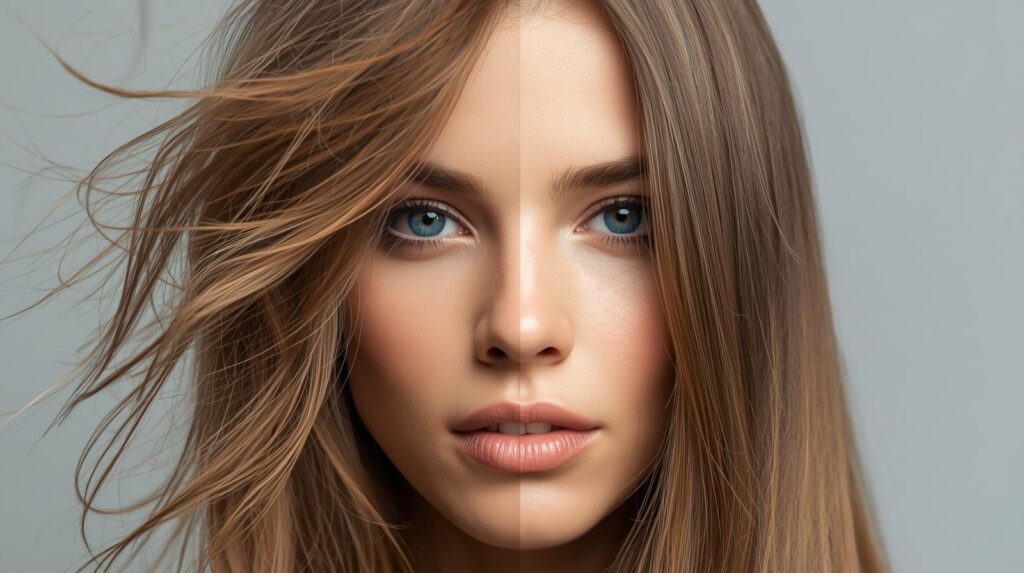
Hair is one of the most detailed and noticeable parts of a photo, right? You know, here, even small imperfections can distract one from the overall image. Here, we will focus on hair touch-up for smoothing it, keeping it natural.
Step 1: First, remove stray hairs using the Clone Stamp Tool or Healing Brush Tool. You can zoom in to ensure precision. You have to maintain the natural flow and direction of hair strands.
Step 2: Next, you have to smooth the hair texture of the photographs. Apply smoothing to areas with frizz using the Smudge Tool or soft Blur Tool. You can also use frequency separation for hair texture without affecting color.
Step 3: Now, you have to enhance highlights and shadows. To do so, you can use the Dodge Tool. It generally brightens natural highlights in hair. You can also use the Burn Tool to deepen shadows for added depth.
Step 4: Now, using Hue/Saturation or Selective Color adjustment layers, you can fix uneven hair tones. You have to ensure enhancing natural hair color without making it look artificial.
Step 5: At last, you have to add shine and definition. Here also, use a small Dodge brush on hair strands to add shine. Sharpen key areas for more definition, especially around edges and strands that frame the face.
How To Touch Up Skin In Photographs?
Skin retouching is one of the most delicate parts of photo editing. Here, our goal is to enhance the complexion and reduce imperfections. But we will ensure we maintain a natural texture. Below are the steps to touch up the skin only on images.
- Duplicate the original layer.
- Zoom in to clearly see imperfections and texture
- Use the Spot Healing Brush Tool for small pimples or marks
- Use the Healing Brush Tool or the Patch Tool for larger imperfections
- Smooth Skin With Frequency Separation
- Use Curves or Levels Adjustment Layers to fix uneven lighting on skin
- Apply Dodge and Burn to correct shadows or highlights
- Add vibrance or soft light overlays to give skin a healthy glow
- Zoom out and check skin in the overall photo context
- Make minor adjustments before saving
What To Keep In Mind When Photo Retouching?
Photo retouching can, of course, greatly enhance your images. However, it is easy to go too far. That is why you need to keep some principles in mind. Like ensuring to preserve the natural appearance. You should always aim to enhance, not completely change, the subject. Moreover, you should avoid over-smoothing skin and over-sharpening details.
Moreover, you should maintain consistent lighting and colors in all photos in a series. Your edits should support the photo’s purpose. Highlight the main subject or feature without adding distractions. Work in steps and take breaks. Review carefully and then move ahead to the next edit. Lastly, always preserve the unedited version.
When Should You Hire A Professional?
That is true, we don’t need professionals for every retouching. But there are cases where help becomes essential. For instance,
- If your images are used for marketing, ads, catalogs, or online stores, you may need professional retouching.
- Businesses and brands need all photos to look in the same style, colors, and lighting. They may need professionals to maintain consistency in those images.
- For high‑end portraits or fashion photography
- When you lack time or tools
- For complex edits or problem photos
- When high-quality images are available. Such as branding campaigns, printed ads, galleries, or client-facing work.
How Clipping Path CA Can Help You With Touchup Photographs?
At Clipping Path CA, their experienced photo editor team transforms your ordinary images into professional visuals. They help to build trust and impress viewers. They specialize in portrait retouching, skin and hair refinement, and commercial product photo enhancements.
Their expertise ensures every image has sharp details, accurate colors, and clean backgrounds. So, if you want to save your time, deliver high-quality results, you can try out their exceptional touch-up services.
Ready for Professional Touch-Ups? Contact Us for High-Quality Results!
Frequently Asked Questions
Do you have any more questions about the touch-up photographs? Let us try to answer some of your common queries through the questions that people mostly ask.
I) What software is best for touching up photos?
You can use Adobe Photoshop. It has the powerful retouching tools for precision edits. You can also use alternatives like Lightroom. You can use this tool for the overall tone and GIMP. It is also a free and full‑featured editor software for detailed retouching.
II) How can I learn photo touch‑up techniques?
You can take online tutorials or courses. Here, YouTube, Adobe tutorials, and photography blogs can help you out. Always keep in mind that practice alone can make your touch-up techniques perfect. That is why you should practice on real images and follow step‑by‑step guides. You can also experiment with tools like Photoshop to build skill and confidence.
III) Is it possible to touch up photos on a smartphone or tablet?
Yes, obviously. Adobe Photoshop has a mobile app for mobile retouching. It is named Adobe Photoshop Express. You can also use Lightroom Mobile and Snapseed. They let you retouch photos on phones or tablets. These apps have tools for blemish removal, exposure control, and color adjustments.
IV) How do I know when to stop editing a photo?
Just at the moment, your photograph looks beautiful and natural. That is the time you have to stop touching up your photographs. That is why you should avoid over‑smoothing skin, over‑saturating colors, and adding heavy effects. If your edits start looking unrealistic, you should stop editing and take a review first.
V) Are low-resolution images good for retouching?
Actually, low‑resolution images have less detail. That is why there is a chance that these images can become blurry or pixelated after you edit them. In contrast, high‑resolution photos have more detail. They allow smoother and more professional retouching. That is why high-resolution images are better for photograph touch-up.
Wrapping Up
Well, as you see, touching up your photos helps your photographs look bright and professional. You can make a big difference with just small changes to colors, lighting, skin, and backgrounds. All you need to do is use the right tools and techniques.
However, if you have harder edits or important projects, you should consider professionals like Clipping Path CA. They can make photos look perfect and consistent. After all, it is all about leaving a great impression on anyone who sees your clicked photographs.
Ready to Make Your Photos Perfect? Get a Free Photo Editing Sample Today!