That is nothing new that when it is about editing photos or making digital art, Photoshop is almost everyone’s choice. Even if you are a Mac user, the cherry on the cake is that you can also use Photoshop on a Mac. It runs fast and offers you a great editing experience. But how do you use the Photoshop app on Mac? That can be a little confusing for the first-time user. That is why in this comprehensive guide, we will explain everything about Photoshop on Mac. All you just need to do is keep on reading.
Why You Should Use Photoshop On Mac?
As you may know, Photoshop works best on both Windows and Mac. However, there are many things for which you may feel like the app runs better on a Mac. If I have to say a reason overall, it is because macOS is built to handle creative apps efficiently. Here are some more reasons why Mac can be a great choice for using Photoshop. Read on.
1. Faster and efficient performance
You know Macs have strong hardware and an optimized operating system. So, you can use the strong Photoshop features on the Mac without freezing or lagging. You can do tasks like filters, brush es, and large files more stably and quickly.
2. Sharp and high-quality displays
Mac screens have Retina displays. So, it can show clear colors, fine details, and smooth lines efficiently. It can help you to edit photos with more accuracy. That reason is simple! That is because you can see true colors and tiny details easily on the retina displays of Mac.
3. Better software stability
You can experience fewer Photoshop crashes on Mac. The system on Mac is tightly controlled. That is why the app works more reliably. So, what will be the benefit? You will be able to work with fewer errors and a greater editing experience.
4. Useful macOS features that support Photoshop
On top of that, Mac offers different built-in tools that help Photoshop users like you. It may include.
- Quickly look feature to preview images without opening Photoshop
- Screenshot tools to capture images in seconds
- Metal graphics support that makes Photoshop run faster
- Dark Mode that can create a comfortable editing environment
- Continuity plus Handoff, with which you can move work between Mac, iPad, and iPhone easily.
5. Strong integration with other Mac apps
You can also get the benefits of strong integration with other Mac apps. Here, you can send or open images quickly between Finder, Preview, Mail, or iCloud. It makes your file saving, sharing, and managing very much easier.
System Requirements for Photoshop on Mac
If you want to install Photoshop on your Mac, first of all, you have to make sure that your Mac can run it smoothly. You know Photoshop needs certain hardware and software to work properly. So, if your Mac doesn’t meet these requirements, it might run slowly or crash. That is why let us check the system requirements for Photoshop on Mac here.
1. macOS version
Photoshop only works best on certain versions of macOS. As of 2026, the version requirement is as follows.
- Minimum macOS: macOS Big Sur (11.0)
- Recommended macOS: macOS Monterey (12.0) or later
- Latest supported: macOS Ventura (13.0) and macOS Sonoma (14.0)
2. Mac Hardware: Processor (CPU)
- Intel Macs: A64-bit Intel processor with SSE 4.2 support
- Apple Silicon Macs: M1, M2, or M3 chips
3. RAM (Memory)
- Minimum: 8 GB RAM
- Recommended: 16 GB or more
4. Storage
- Minimum free space: 4 GB
- Recommended: 20 GB or more
5. Graphics Card
- Requirements: GPU must support Metal
- VRAM recommendation: 2 GB minimum and 4 GB or more for 4K images
- Apple Silicon: Integrated GPU in M1/M2/M3 chips
6. Display
- Minimum resolution: 1280 x 800
- Recommended: 1920 x 1080 or Retina display
Here is a quick overview of the requirements for your ease.
| Requirement | Minimum | Recommended |
| Operating System | macOS 11.0 (Big Sur) | macOS 13.0 (Ventura) or later |
| Processor | Intel Multicore with 64-bit support | Apple M1 / M2 / M3 or Intel 6-core+ |
| RAM | 8 GB | 16 GB or more |
| Graphics | GPU with Metal support | GPU with 2 GB VRAM or higher |
| Hard Disk Space | 4 GB free | SSD with 10 GB and free for scratch disk |
| Monitor Resolution | 1280 x 800 | 1920 x 1080 or higher Retina recommended |
| Internet | It is required for an Adobe account and updates | It is required for an Adobe account and updates |
How To Download And Install Photoshop On Mac?
You know, installing Photoshop on a Mac is not a very hard nut to crack. You just need to follow very simple steps to get the installation done very easily. How can we do so? Check it out below.
Step 1: Make sure your Mac meets the requirements
First of all, you need to make sure your Mac meets the requirements to handle Photoshop efficiently. If your Mac doesn’t meet these requirements, Photoshop may run slowly or fail to open.
Step 2: Create an Adobe account
Photoshop requires an Adobe ID to download, install, and activate the software. That is why you go to the Adobe website. Sign up with your email and a password. After you verify your email, you can use your account to download Photoshop on your Mac.
Step 3: Choose your plan
Now you have to choose a plan for Photoshop. Here, you can choose the Photoshop-only plan if you only need Photoshop. You can also choose the Photography plan. It includes Lightroom and some cloud storage. You can also get the 7-day free trial if you are using the app for the first time.
Step 4: Download the Adobe Creative Cloud App
You can install Photoshop through the Creative Cloud app. This app also keeps your software updated. You can download it from the official site of Adobe. Then you have to open the installer and follow the on-screen instructions. After the app is installed, you have to log in using your Adobe account.
Step 5: Install Photoshop
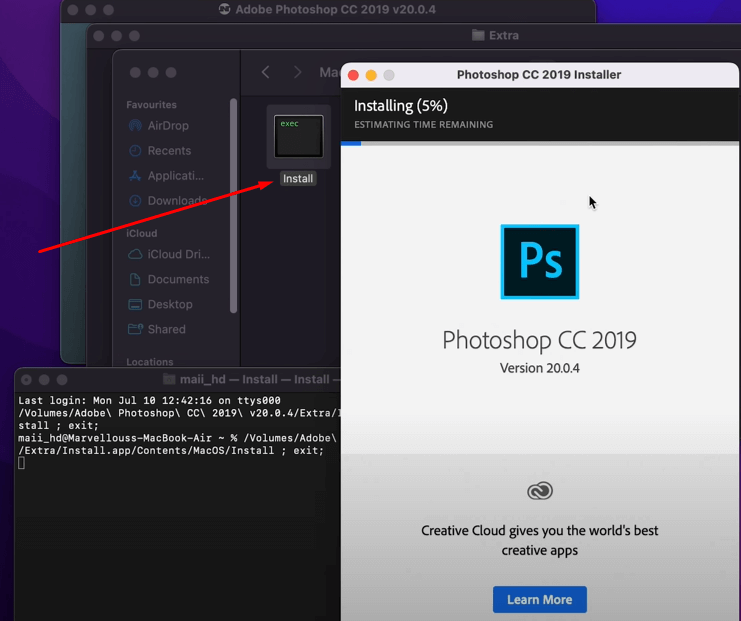
Now, locate Photoshop in the list of available apps within Creative Cloud and click Install. Creative Cloud automatically installs the native version optimized for M1, M2, or M3 chips on Apple Silicon Macs. Intel Macs will install the Intel-compatible version.
Step 6: Launch Photoshop for the first time
Well, we are done with the installation. Now, open Photoshop from your Applications folder. It may take a little longer. That is because Photoshop sets up preferences and GPU settings. If it asks for permission to access files or folders, grant these permissions always. All done! Now you just have to sign in with your Adobe ID.
The Photoshop Interface On Mac
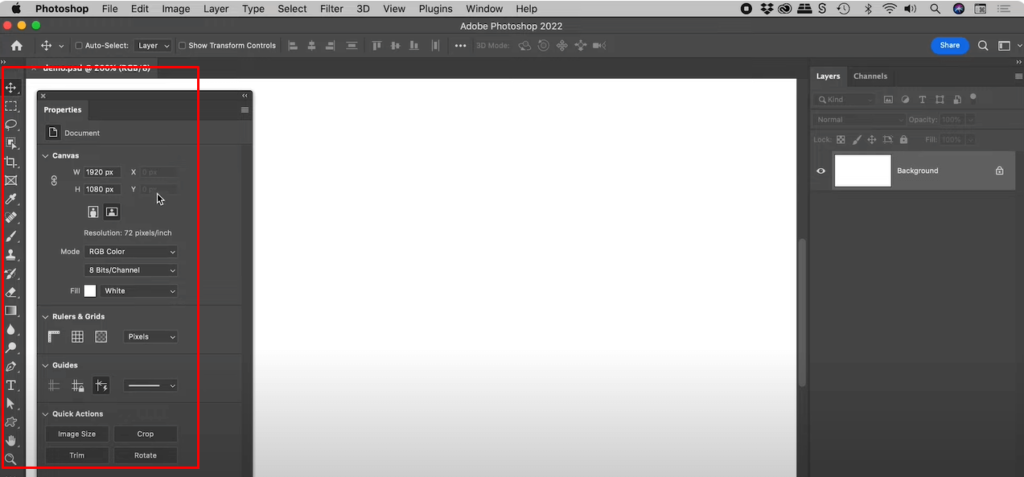
Well, we are done with downloading and installing the Photoshop app on our Mac. Now, get familiar with its interface. Here is a detailed breakdown to assist you.
1. Menu Bar
The top of your screen is the Menu bar. It contains all the comm
ands and options of Photoshop. Here is a quick overview of what the main menus include.
| Menu Bar | Use |
|---|---|
| File | It creates, opens, saves, exports, or prints your projects. |
| Edit | Undo, redo, cut, copy, paste, and access adjustments. For instance, transform, fill, and stroke. |
| Image | Adjust size, resolution, color, and mode. |
| Layer | Add, delete, merge, or manipulate layers. |
| Select | Make selections, refine edges, and modify selection areas. |
| Filter | Apply artistic, blur, sharpen, or distortion effects |
| View | Show or hide guides, grids, rulers, and panels |
| Window | Open or close specific panels. |
| Help | Access Adobe help resources or search for features. |
2. Toolbar (Toolbox)
The Toolbar is usually on the left side of the workspace. It contains all your editing tools.
| Tools | Mac Shprtcut | Use |
| Move Tool | (V) | Move objects or layers around |
| Marquee & Lasso Tools | (M & L) | Make rectangular, elliptical, or freehand selections. |
| Crop Tool | (C) | Trim, straighten, and crop images. |
| Brush Tool | (B) | Paint on your canvas with various brush styles. |
| Eraser Tool | (E) | Remove unwanted parts of layers |
| Spot Healing Brush Tool | (J) | Quickly remove blemishes or imperfections. |
| Text Tool | (T) | Add text to your design |
| Shape Tool | (U) | Draw rectangles, circles, and other shapes. |
| Eyedropper Tool | (I) | Sample colors from your image. |
3. Options Bar
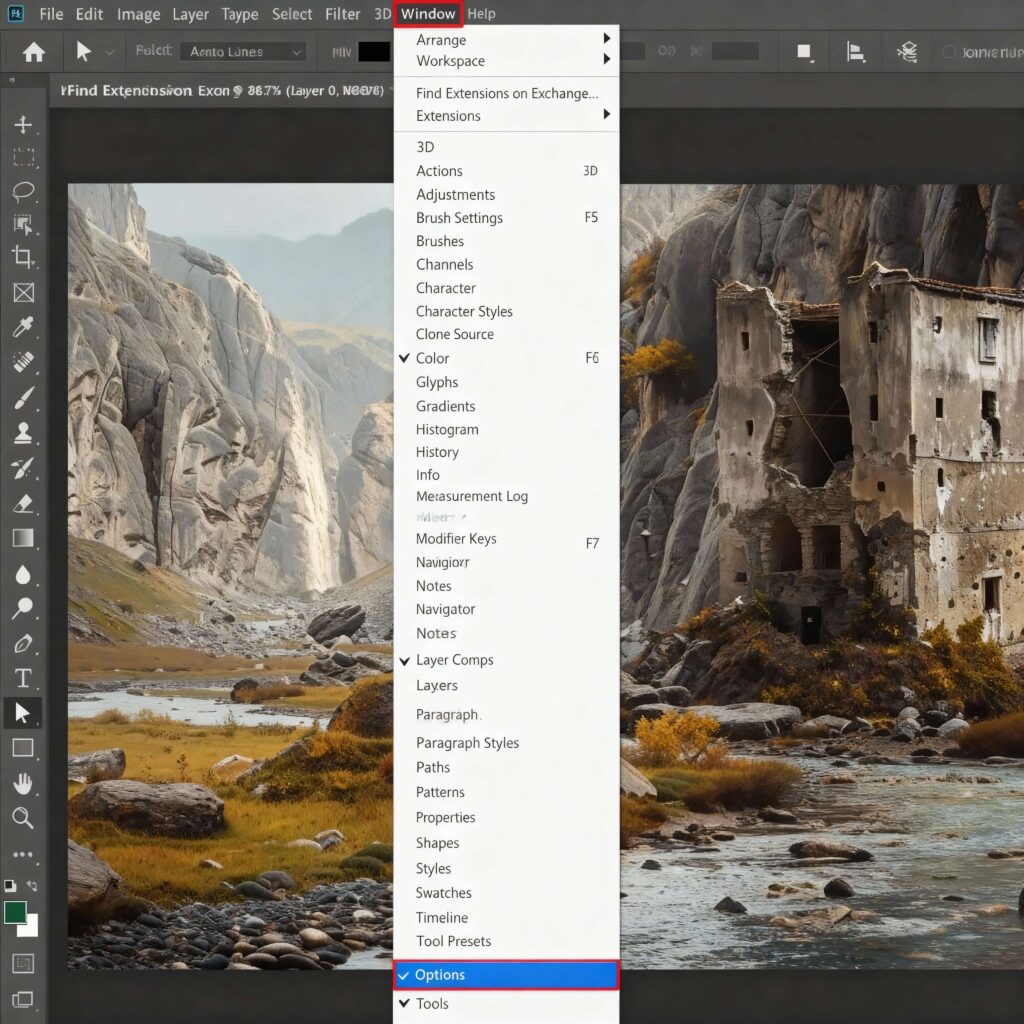
The Options Bar changes depending on which tool you have selected currently. For example, if you select the Brush Tool, the Options Bar will display size, hardness, and opacity. If you select the Text Tool, it will show font, size, alignment, and style options.
4. Panels
If you look on the right side of your workspace, you will see Panels floating or on docked windows. They provide access to features like layers, colors, history, and adjustments.
| Panels | Use |
| Layers Panel | Manage the stacking order, visibility, and blending of all layers. |
| Adjustments Panel | Apply non-destructive edits like brightness, contrast, hue/saturation, and curves. |
| Properties Panel | Displays contextual properties for the currently selected layer or object. |
| History Panel | Undo or redo multiple steps |
| Color Panel | Choose and save colors |
| Brush Pane | Adjust brush presets, shapes, and dynamics. |
5. Status Bar
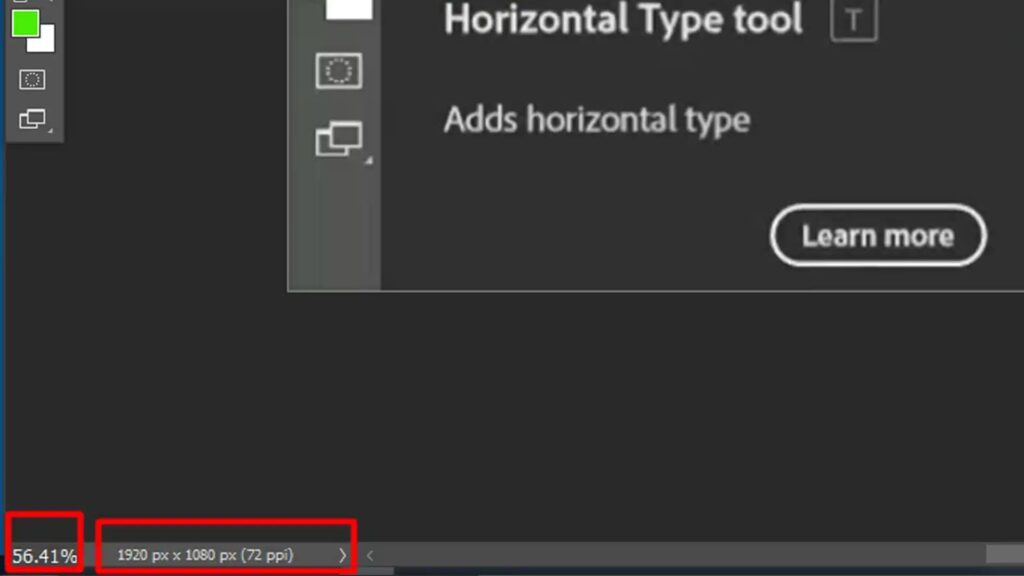
The Status Bar is at the bottom of the workspace. It shows you useful information like,
- Current zoom level
- File size
- Color profile
- Current tool hints
7. Mac-specific keyboard shortcuts
| Action | Shortcut (Mac) | Notes |
| Save | Cmd + S | Save current file |
| Save As | Cmd + Shift + S | Save a copy or a new version |
| Undo | Cmd + Z | Undo last action |
| Redo | Cmd + Shift + Z | Redo the last undone action |
| Copy | Cmd + C | Copy selection or layer |
| Paste | Cmd + V | Paste copied content |
| Zoom In | Cmd + + | Zoom into the image |
| Zoom Out | Cmd + – | Zoom out of the image |
Opening And Importing Images On Mac
Photoshop offers different ways to open and import files on a Mac. It makes it flexible according to your image location. Let us check out each method below.
1. From your Mac
It is the most straightforward way to open and import images on a Mac. Here, we open an image that is already saved on our Mac. Follow the steps below to open an image from your Mac.
- Open Photoshop.
- Click File >> Open, or press Cmd + O.
- Navigate to the folder where your image is stored.
- Select the file, and click Open.
2. From cameras or external devices
If you’re working with a camera, memory card, or external drive, here is how you can open the image on a Mac. First, you have to connect your camera or device to your Mac using a USB cable or card reader. Then open Photoshop. Go to File >> Import >> Images from Device. Now you have to select your device from the list. Select the images you want to import and click Open.
3. Drag and drop from Finder
It is very easy to open files with drag-and-drop on a Mac. Here, first you have to open Finder and locate your image. Then you have to drag the file directly into the Photoshop workspace.
4. From iCloud or other cloud storage
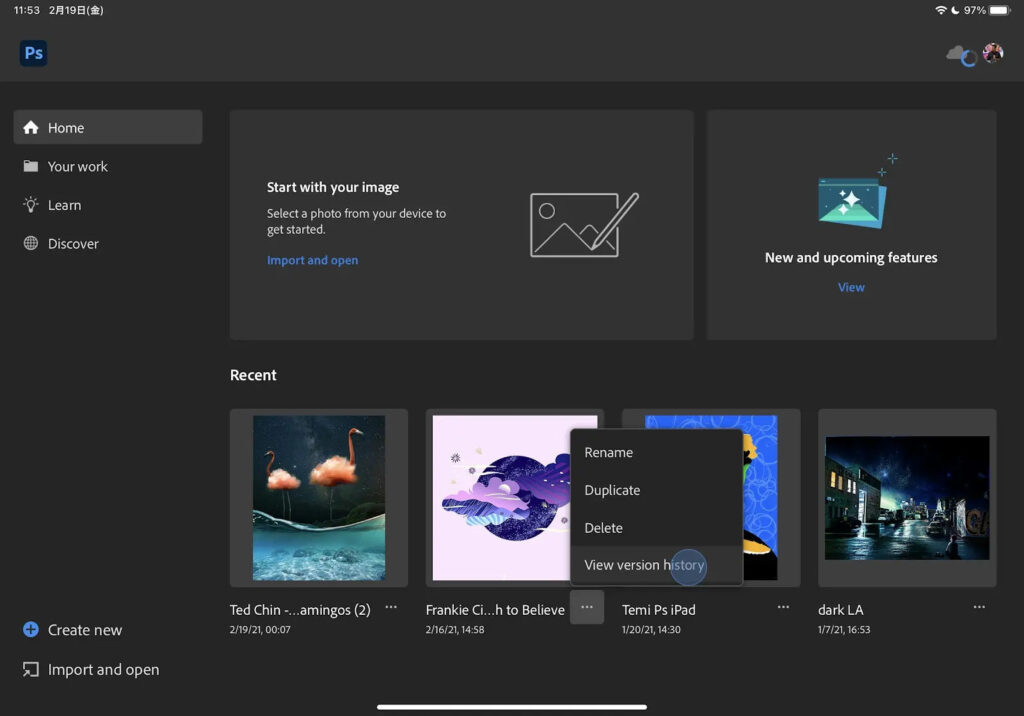
If you store images in iCloud Drive, Dropbox, Google Drive, or OneDrive, you can use this method. Photoshop can open these files just like local files. First, you have to go to your cloud folder in Finder. Then drag and drop the image into Photoshop. You have to ensure the file is fully downloaded. That is because Photoshop cannot open files that are still in cloud-only mode.
Basic Editing Techniques In Photoshop On Mac
Now that we have opened our images in Photoshop, let us learn the basic editing techniques. They are the foundations for all your creative work. So, let’s move on.
1. Adjusting image size and resolution
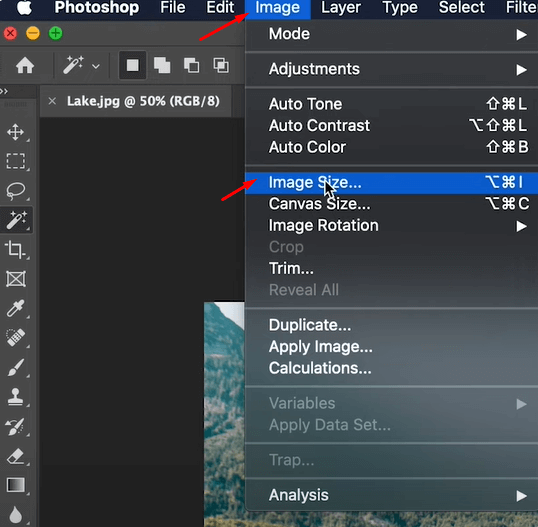
In Photoshop on Mac, you can adjust image size and resolution very easily. First, just go to Image. Next, choose the Image Size option. A dialog box will appear with options for width, height, resolution, and resampling. Now adjust the size and resolution according to your needs or preferences.
2. Cropping and straightening images
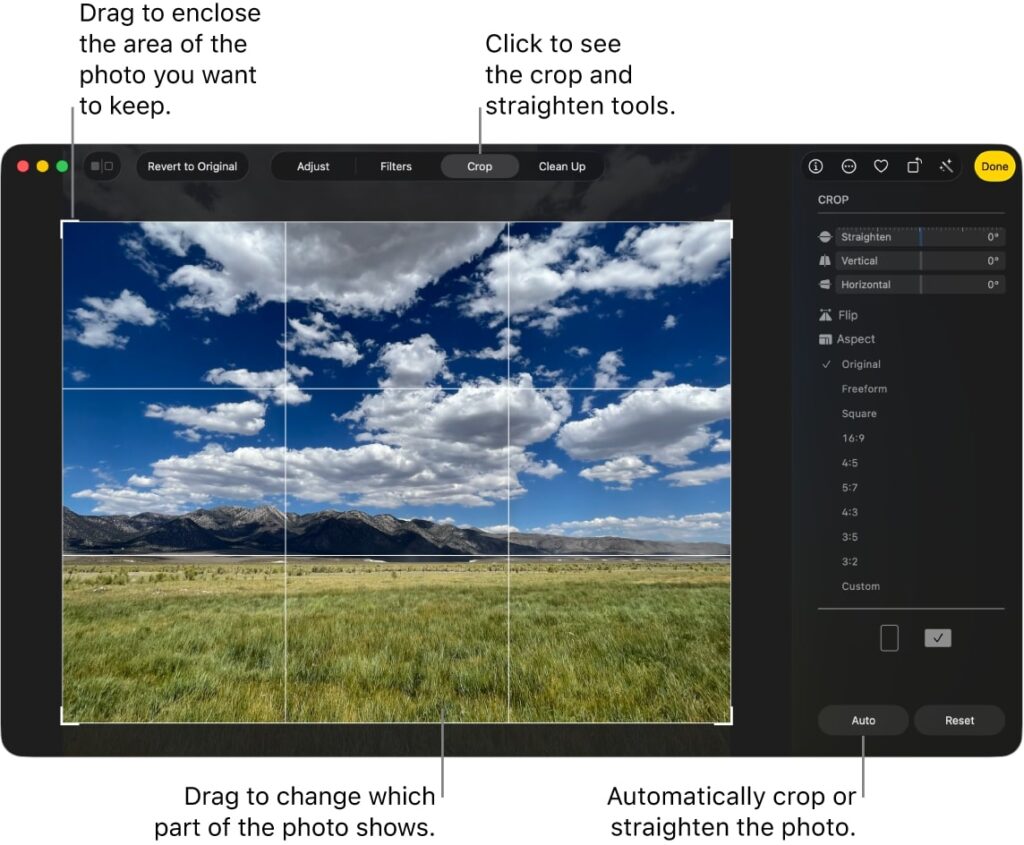
You can remove the unwanted areas with the Cropping feature. It also improves the composition of the image. To crop your image in Photoshop on Mac, follow the steps below.
Step 1: Select the Crop Tool (C) from the toolbar.
Step 2: Drag to define the crop area. You can adjust the handles for precise dimensions.
Step 3: Press Return to apply.
If you want to straighten the image, you can use the Ruler Tool to do so. First, use the tool to draw a line along a horizon or vertical reference. Then go to Image >> Image Rotation >> Arbitrary. Now, Photoshop will automatically straighten the image based on your ruler line.
Step 3: Adjusting brightness, contrast, and color
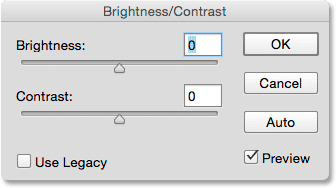
You can also correct brightness, contrast, and color very easily with Photoshop. First, you need to go to the Image and then select Adjustments. Here you will see the Brightness/Contrast option to tweak light levels. You can also choose the Levels or Curves options from the Adjustments for more precise control. To correct color tones, choose the Color Balance or Hue/Saturation option from Adjustments.
Step 4: Removing blemishes and imperfections
There are many Photoshop tools that you can use to clean up images efficiently. Here is a quick overview of it.
| Photoshop Tools | Use |
| Spot Healing Brush (J) | It automatically removes small blemishes and spots. Click on the imperfection to fix it |
| Clone Stamp Tool (S) | It copies pixels from one area to cover another. You have to hold Option >> click the source >> paint over the target |
| Patch Tool | It is ideal for larger areas. Select the area to replace, and drag it to a clean section. That is it. Photoshop blends it naturally. |
5. Saving and exporting images
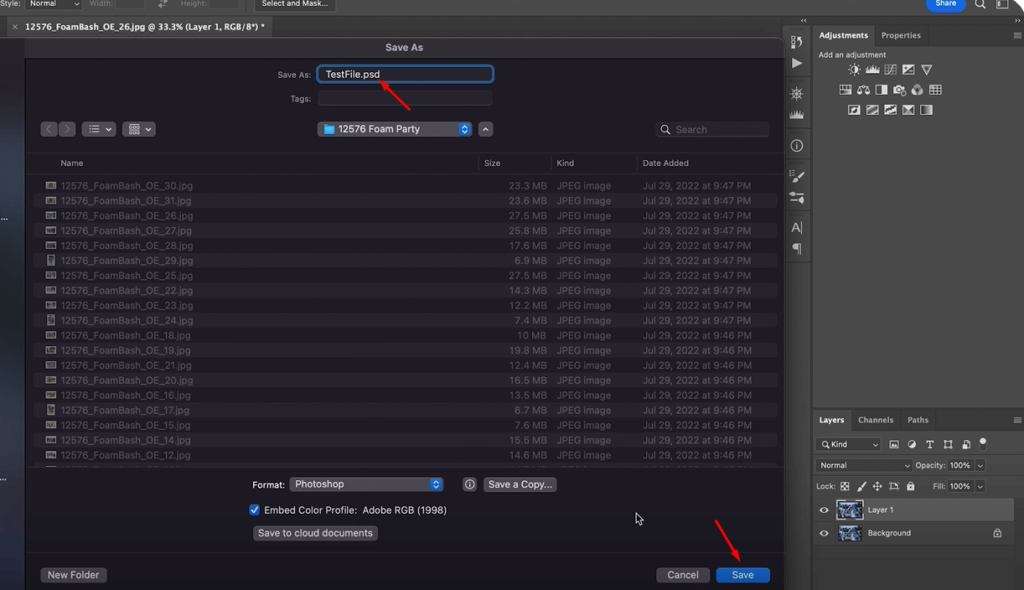
After editing, you can ensure your work is preserved correctly and ready for use. To save your edited image, go to File >> Save As >> Photoshop (.PSD). Use File >> Export >> Export As to export the image. You can just press Cmd + Shift + S to open “Save As” quickly.
Here is an overview of file formats and export options for Photoshop on Mac.
| Format | Best Use | Notes |
| PSD | Master file | It keeps all layers, masks, and edits for future work |
| JPEG | Web / Social Media | CompressedSmaller file sizeGood for photos |
| PNG | Graphics / Transparency | It supports transparent backgroundsGood for logos |
| TIFF | It has a lossless qualityIdeal for professional printing | |
| GIF | Simple animations | Low color depthIt is used for basic animations |
Fixing Common Computer Issues On Mac During Photoshop Work
Well, that is true that Macs are known for stability and performance. However, that is also natural that using Photoshop can sometimes trigger software or hardware issues. That is especially when you are handling large files, multiple layers, or advanced effects.
So, of course, it can help you very much if you know how to troubleshoot these problems. That is why we have covered this section. Just read on.
1. Photoshop runs slowly or lags
If your Photoshop runs slowly, first check RAM Usage. Go to Photoshop >> Preferences >> Performance. Then ensure that it has enough RAM is allocated. Moreover, Photoshop uses scratch disks as temporary storage when RAM is insufficient. You should assign a fast SSD as the primary scratch disk. To do so, go to Preferences >> Performance >> Scratch Disks.
Moreover, you need to Close Unnecessary Apps and Reduce File Size to solve the problem.
2. Photoshop crashes on launch
If your Photoshop crashes while working,
- Hold Shift + Option + Command while launching Photoshop to reset.
- Check Plugins and ensure they are compatible with the latest version or Apple Silicon. Disable plugins temporarily to identify the culprit.
- Always keep Photoshop updated through Creative Cloud.
3. File-related errors
If your Photoshop is showing Error Code 43, it usually indicates a problem with file or folder operations. It can happen when moving, copying, or opening files. To fix the problem,
- Check if the file is in a synced cloud folder and fully downloaded.
- Verify permissions by selecting the file >> Get Info >> Sharing & Permissions.
- Ensure your user account has Read & Write access.
- Avoid special characters in file names.
4. GPU and graphics issues
Photoshop uses GPU acceleration for many effects and features. If it is showing problems, here is what you need to do.
- Go to Preferences >> Performance >> Graphics Processor Settings to enable/Disable GPU Acceleration. Toggle GPU use on or off to see which works better.
- Update macOS.
5. Fonts and type issues
Check out the following things to solve the problem.
- Ensure your Adobe Fonts are activated through Creative Cloud.
- If using custom system fonts, install them via Font Book and restart Photoshop.
- Photoshop will prompt for missing fonts. Select a replacement to continue editing without errors.
Conclusion
Well, as you see, it is not a very hard task to use Photoshop on a Mac. It combines all the stability, performance of Windows. All you need to understand essential tools, common issues, and follow best practices for saving and exporting confidently to create professional-quality images. One thing is for sure- Photoshop on Mac can offer everything you need to bring your editing vision to life.